

View
Source file: context-view.htm
The View context sensitive ribbon tab contains tools specifically related to the view window.

| Tool | Location on the ribbon | Operation |
|---|---|---|
 Profile view Profile view |
View context sensitive ribbon tab > Hole group > Profile View |
For information on the hole profile view, see Profile. |
 2D Hole View 2D Hole View |
View context sensitive ribbon tab > Hole group > 2D Hole View |
Select 2D Hole View to bring up a side panel displaying a 2D view of the selected holes. |
 Find Hole Find Hole |
View context sensitive ribbon tab > Hole group > Find Hole |
For information on finding holes in the view window, see Find Hole. |
 Snapshots Snapshots |
View context sensitive ribbon tab > Hole group > Snapshots |
For information on snapshots, see Create Snapshot. |
 Current State Current State |
View context sensitive ribbon tab > Hole group > Current State |
Select Current State to display the current state of the holes in the view window. |
 As-Drilled by wet sides As-Drilled by wet sides |
View context sensitive ribbon tab > Hole group > As-Drilled by wet sides |
Select As-Drilled by wet sides to colour the holes in the view window by their dip information. |
 Drill depth variation Drill depth variation |
View context sensitive ribbon tab > Hole group > Drill depth variation |
Select Drill depth variation to colour the holes by the difference in their design and as-drilled depth. |
 Charge depth variation Charge depth variation |
View context sensitive ribbon tab > Hole group > Charge depth variation |
Select Charge depth variation to colour the holes by the difference in their charge and as-drilled depth. |
 Charge decks Charge decks |
View context sensitive ribbon tab > Hole group > Charge decks |
Select Charge decks to display the charge decks in each hole in the view window. |
 Plan charge decks Plan charge decks |
View context sensitive ribbon tab > Hole group > Plan charge decks |
Select Plan charge decks to display the planned charge decks of each hole in the view window. |
 Primers Primers |
View context sensitive ribbon tab > Hole group > Primers |
Select Primers to display the primer information and charge decks of each hole in the view window. |
 Intervals Intervals |
View context sensitive ribbon tab > Hole group > Intervals |
Select Intervals to display the intervals in each hole in the view window. |
 Drill Measurements Drill Measurements |
View context sensitive ribbon tab > Hole group > Drill Measurements |
Select a drill measurement from the Drill Measurements drop-down, to view the corresponding measurements of the holes in the view window. |
 Image Render Image Render |
View context sensitive ribbon tab > Export group >Image Render |
For information on this tool, see Image Render. |
 Coordinate Grid Coordinate Grid |
View context sensitive ribbon tab > Effects group > Coordinate Grid |
Select Coordinate Grid to display a coordinate grid over the view window. |
 Visibility Editor Visibility Editor |
View context sensitive ribbon tab > Effects group > Visibility Editor |
For information on the Visibility Editor, see Visibility Editor. |
 Surface Render Mode Surface Render Mode |
View context sensitive ribbon tab > Effects group > Surface Render Mode |
For information on the surface render modes, see Surface render mode. |
 Side Light Side Light |
View context sensitive ribbon tab > Effects group > Side Light |
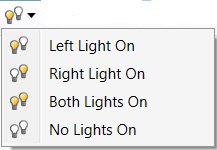
The Side Light drop-down allows you to change the headlight direction to alter the display of shadows.
|
 Headlight Headlight |
View context sensitive ribbon tab > Effects group > Headlight |
Select Headlight to turn the headlight on in the view window. |
 Set Centre of Rotation Set Centre of Rotation |
View context sensitive ribbon tab > Camera group > Set Centre of Rotation |
For information setting the centre of rotation, see Set Centre of Rotation. |
 Zoom to Selection Zoom to Selection |
View context sensitive ribbon tab > Camera group > Zoom to Selection |
Select Zoom to Selection to zoom into a selected area in the view window. |
 Set View Point Set View Point |
View context sensitive ribbon tab > Camera group > Set View Point |
Select Set View Point to select a point in the view window to set as the position and orientation of the view camera. |
 Projection Mode Projection Mode |
View context sensitive ribbon tab > Camera group > Projection Mode |
For information on the projection modes, see Projection mode. |
 Predefined Views Predefined Views |
View context sensitive ribbon tab > Camera group > Predefined Views |
For information on predefined views, see Predefined views. |
 Camera Back Camera Back |
View context sensitive ribbon tab > Camera group > Camera Back |
Select Camera Back to switch back to the previous camera view. |
 Camera Forward Camera Forward |
View context sensitive ribbon tab > Camera group > Camera Forward |
Select Camera Forward to go to the next camera view. |
 Saved Cameras Saved Cameras |
View context sensitive ribbon tab > Camera group > Saved Cameras |
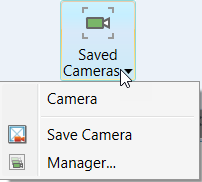
Select the Saved Cameras drop-down to view or select saved camera views. You can also select Save Camera from the drop-down to save the current camera view or select Manager... to edit, import or export cameras.
|
 Set Manipulation Mode Set Manipulation Mode |
View context sensitive ribbon tab > Camera group > Set Manipulation Mode |
For information on manipulation modes, see Manipulation mode. |
 Tie To Tie To |
View context sensitive ribbon tab > Camera group > Tie To |
For information on tying multiple windows, see Tied views. |
See also: View window context menu, Viewing Objects, and View Window Toolbar
Was this page helpful?
